
Introduction
TeamViewer is a remote access and control platform designed to let you connect to computers, mobile devices, and tablets from almost anywhere. It has been a familiar name in the remote support market for years, and in 2026 it still stands out for one simple reason: it makes remote connections easy. Whether you need to help a family member fix a laptop, log in to your office PC while traveling, or support multiple client machines as part of an IT workflow, TeamViewer offers a polished and dependable way to do it.
What has always made TeamViewer appealing is the balance it strikes between accessibility and capability. New users can install it quickly and start a remote session without getting lost in technical setup. More advanced users and businesses can go further with unattended access, device management, secure authentication, file transfer, remote printing, session logging, and collaboration features. In other words, it is not just a screen-sharing app. It is a full remote connectivity platform built for both casual and professional use.
That said, TeamViewer is not automatically the best option for everyone. The free plan comes with important restrictions, and commercial licensing is one of the biggest sticking points for small businesses. This review looks closely at how TeamViewer performs in real-world use, what you actually get for the money, where it still excels, and where competing remote desktop tools may offer better value.

Ready to try TeamViewer?
Check the latest pricing & offers.
Affiliate link — we may earn a commission at no extra cost to you.
Design & Build Quality
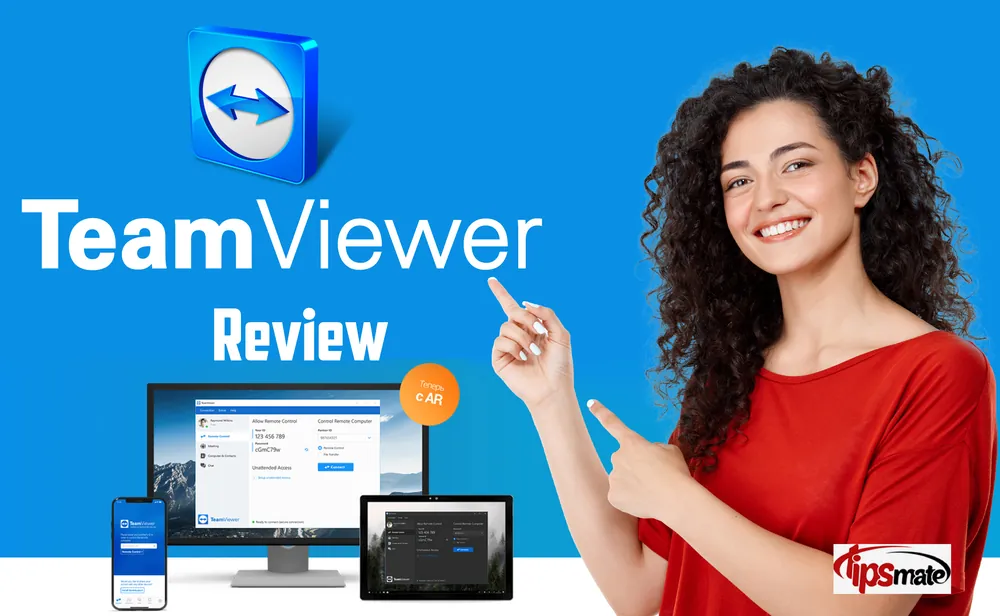
Software does not have build quality in the same sense as hardware, but design quality matters just as much in a product like this. TeamViewer feels mature, polished, and carefully organized. The dashboard presents the core functions clearly, including remote control, device access, contacts, file transfer, and session options. Even users with little technical experience can usually figure out the basics within minutes.
Clean interface with practical layout
The interface is built around efficiency. Starting a session typically involves entering a partner ID or selecting a saved device from your account. Menus are logically grouped, and the most commonly used tools are easy to access during a live session. That matters because remote support software should not add friction when you are already trying to solve a problem.
During a session, the toolbar gives quick access to scaling, resolution settings, file transfer, chat, audio, reboot controls, and security actions. TeamViewer does a good job of keeping power features available without making the screen feel cluttered. This balance is one of the reasons it remains popular with both home users and support professionals.
Cross-platform consistency
Another strength is the consistency across operating systems. TeamViewer supports Windows, macOS, Linux, Android, and iOS, and while the exact layout varies by platform, the overall experience stays familiar. If you use multiple devices, that continuity reduces the learning curve. For businesses with mixed hardware environments, this broad support is a major advantage.
Installation is also simple. In most cases, you download the app, sign in or create an account, grant the necessary permissions, and you are ready to go. Unlike some remote access tools, TeamViewer usually works without requiring router-level changes or manual port forwarding, which significantly reduces setup headaches.
Key Features
TeamViewer's reputation is built on more than just remote desktop access. It includes a broad set of tools that cover support, collaboration, and device management. Some are available to free users, while others are tied to commercial licenses.
Remote access and unattended control
The core feature is remote control. You can view and operate another computer as if you were sitting in front of it, which is essential for troubleshooting, maintenance, software installation, and accessing work files from afar. Unattended access is especially useful for business users who need to reach office machines, servers, or customer endpoints without someone on the other side manually approving every session.
File transfer and remote printing
TeamViewer includes solid file transfer tools that make it easy to move documents, installers, media, or logs between devices. You can transfer files inside a session or use a dedicated file transfer mode. For many users, this eliminates the need to rely on email attachments or cloud storage just to move a file from one system to another.
Remote printing is another practical feature for office workflows. If you are accessing a remote machine and need to print a document locally, TeamViewer can handle that without forcing awkward workarounds.
Multi-platform support
One of TeamViewer's biggest strengths is device compatibility. It works across desktops and mobile devices, making it useful not only for computer-to-computer sessions but also for mobile support scenarios. Businesses supporting a distributed workforce often need this flexibility, especially when employees use different operating systems or a bring-your-own-device setup.
Meetings, screen sharing, and collaboration
Although TeamViewer is best known for remote support, it also includes collaboration tools such as screen sharing, chat, and meeting capabilities. These features are not always the primary reason people choose TeamViewer, but they add value for training, demonstrations, and quick internal support sessions. Instead of jumping between separate tools for remote control and basic collaboration, some teams can handle both within one platform.
Security features
Security is a major issue with remote access software, and TeamViewer takes it seriously. It uses strong encryption to protect data in transit and offers options such as two-factor authentication, trusted device authorization, and access controls. Admins can also set policies around permissions and security behavior, which is especially important in business environments where compliance and endpoint safety matter.
That does not mean users should ignore best practices. Strong passwords, account protection, user role controls, and device review are still essential. But TeamViewer gives organizations a solid toolkit for building a secure remote access setup.

Performance & Real-World Testing
Feature lists are important, but performance is what determines whether remote desktop software is actually worth paying for. In real use, TeamViewer performs very well, especially for general office work, technical support, software troubleshooting, and file handling.
Connection quality and responsiveness
On stable internet connections, TeamViewer delivers a smooth experience with low enough latency for routine administrative tasks. Opening menus, moving windows, changing settings, and launching applications feels responsive. For support technicians, that responsiveness matters because delays quickly become frustrating during repeated troubleshooting sessions.
TeamViewer also manages image quality intelligently. It can prioritize performance over visual fidelity when bandwidth is limited, which helps keep sessions usable even on weaker networks. If your work mostly involves productivity software, system settings, browser tasks, or help desk operations, performance is generally excellent.
Working over slower networks
Remote tools often look great under ideal conditions but break down when network quality drops. TeamViewer handles inconsistent bandwidth better than many lightweight competitors, though performance still depends heavily on both endpoints. On slower connections, you may notice lower frame rates or softer image quality, but sessions often remain stable enough for troubleshooting and administration.
That said, high-motion tasks are not TeamViewer's specialty. If you want to stream video, edit media in real time, or use a remote PC for graphics-heavy work, the experience is less impressive. It is clearly optimized for productivity and support, not demanding visual workloads.
Reliability in day-to-day use
Reliability remains one of TeamViewer's strongest qualities. Sessions are generally stable, reconnect behavior is decent after short interruptions, and the software has enough controls to restart a remote machine and reconnect when needed. This is especially valuable for IT teams handling maintenance or support on unattended devices.
There can still be occasional hiccups. Some users report commercial-use flags on personal accounts, brief session interruptions, or platform-specific quirks after operating system updates. These issues are not unique to TeamViewer, but they are worth mentioning because remote access software is often used in time-sensitive situations.
Value for Money
Value is where TeamViewer becomes more complicated. For personal, non-commercial use, the free option can be very appealing. If you only need occasional access to your own devices or want to help friends and family, it can be enough. The interface is polished, setup is easy, and you benefit from the same core remote technology that made TeamViewer famous.
However, the free plan is not a hidden unlimited bargain. It is restricted to personal use, and users who blur the line between personal and commercial activity may run into session limits or account flags. If you need remote access for work, client support, or business operations, you should expect to pay for a commercial license.
Commercial pricing
TeamViewer's paid plans are feature-rich, but they are rarely described as cheap. Starting prices are manageable for some solo professionals, but costs can rise quickly as you add users, channels, devices, or enterprise requirements. For established businesses that need dependable support infrastructure, the price may be justified. For freelancers or small teams with lighter needs, it can feel expensive compared with newer competitors.
What you are paying for
To be fair, the price is not only about remote control. You are paying for a mature ecosystem, strong cross-platform support, business-grade security, centralized management, unattended access tools, and a product with a long record in professional environments. If those factors are critical to your workflow, TeamViewer can absolutely deliver good value. If you only need very basic remote desktop access, it may be more than you need.

How It Compares
TeamViewer competes in a crowded market, and several alternatives deserve consideration. Its biggest edge is ease of deployment paired with broad device compatibility. It is especially attractive for businesses that support varied operating systems and need a trusted, scalable tool.
Against lower-cost remote desktop tools
Compared with budget-focused alternatives, TeamViewer usually offers a more refined interface, better brand trust, and stronger enterprise support options. The trade-off is cost. Lower-priced tools may provide enough functionality for straightforward remote access but often lack the same polish, management depth, or cross-platform maturity.
Against built-in or simple free options
Some users compare TeamViewer with built-in operating system tools or browser-based remote access solutions. Those can work for very basic use cases, but TeamViewer is far more flexible. It is easier to deploy across mixed devices, better suited for support scenarios, and much stronger when you need file transfer, unattended access, mobile support, or centralized device management.
Top alternatives to consider
If price is your top concern, alternatives such as AnyDesk, Splashtop, or Chrome-based remote tools may be worth evaluating. If enterprise integrations and endpoint management matter more than lowest cost, TeamViewer remains highly competitive. In short, TeamViewer is rarely the cheapest option, but it is often one of the most complete.
Who Should Buy It
TeamViewer is best suited to users who prioritize reliability, cross-platform compatibility, and easy deployment.
- Home users who need occasional remote access or want to help family members can get a lot from the free plan, as long as usage remains personal.
- Freelancers and consultants who support clients remotely will appreciate the quick setup, unattended access, and professional-grade features.
- IT teams and managed service providers are a strong fit because TeamViewer simplifies support across mixed device environments.
- Businesses with hybrid or remote staff can benefit from secure access to office machines, file transfer, and centralized remote management.
On the other hand, if you need only occasional access to one or two personal machines and do not care about advanced management features, TeamViewer may be more powerful than necessary. If budget is tight, a simpler alternative could make more sense.

Frequently Asked Questions
Is TeamViewer really free?
Yes, but only for personal, non-commercial use. If you use it for business, client work, paid support, or anything that looks commercial, you will likely need a paid license.
Is TeamViewer safe to use?
TeamViewer is generally considered safe when configured properly. It uses strong encryption and offers features such as two-factor authentication and trusted device controls. As with any remote access software, safe account practices are essential.
Can TeamViewer work without port forwarding?
In most cases, yes. One of TeamViewer's long-standing advantages is that it usually establishes connections over the internet without requiring complicated router configuration.
What are the biggest drawbacks of TeamViewer?
The main downsides are commercial pricing, the limitations of the free plan, and the fact that performance can dip on poor internet connections. Some users may also find that they are paying for more features than they actually need.
Conclusion
TeamViewer remains one of the most capable and user-friendly remote access solutions available in 2026. It excels at making secure remote control, support, and cross-platform connectivity accessible to both beginners and professionals. While the pricing will not suit every budget, the software's reliability, feature depth, and easy setup help justify its premium position. If you want a proven remote desktop tool that does more than the basics, TeamViewer is still one of the strongest options in its category.
Related reading
Compare more options: Best Video Editing Software in 2026: Expert Reviews & Top Picks · Shop all deals.
Ready to try TeamViewer?
Check the latest pricing & offers.
Affiliate link — we may earn a commission at no extra cost to you.